

Tutorial
In current version, kotti_mapreduce uses only Amazon Elastic MapReduce (Amazon EMR). Let’s make a streaming job flow.
Job Container
First of all, create a Job Container.

Add Job Container
You can see an Edit page for Job Container. Then, input for a title what you like and click save button. Sorry, Cloud vendor is only accepted aws in current version.
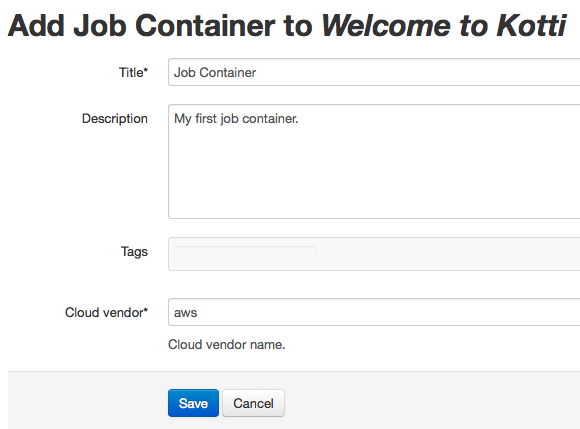
Create Job Container
A Job Container content is created. You can see Resource and Bootstrap and Job Service sections.
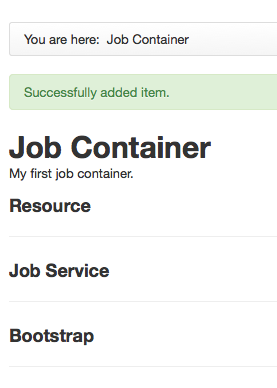
Created Job Container

Bootstrap
As necessary, you can register Hadoop bootstrap processes.
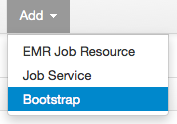
Add Bootstrap
Select Action Type and input other parameters. For example, Configure Daemons is below.
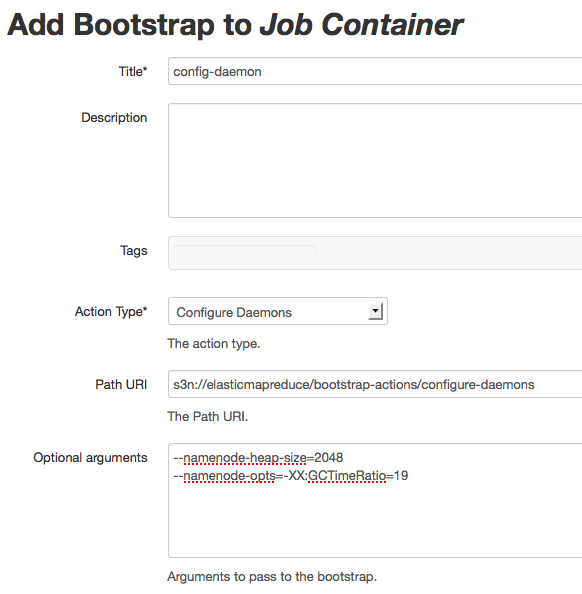
Create Bootstrap
Job Service
Now, you’re ready to create the EMR Job Flow. Before creating a job flow, make a job service to be able to include several job flows. The job service is used as a container for jobflows.
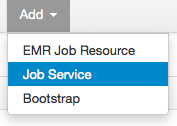
Add Job Service
Select Resource to be used on this job service.
Note
Job Service requires a resource so you have to register the resource at least one.
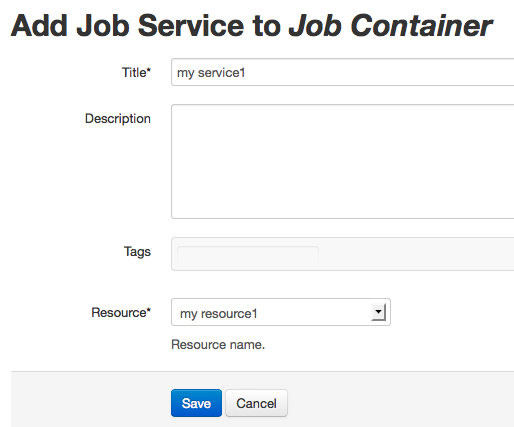
Create Job Service
After saving a job service, you can see below page.

Created Job Service
Job Flow
Let’s keep trying a little longer. We believe you already get used to Kotti user interface. Take it easy!
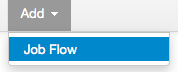
Add Job Flow
Job type is important configuration to select Hadoop application. There three applications as below.
- hive
- custom-jar
- streaming
If your application requires bootstrap processes, set them as the job flow’s configuration. For example, Streaming Job is below.
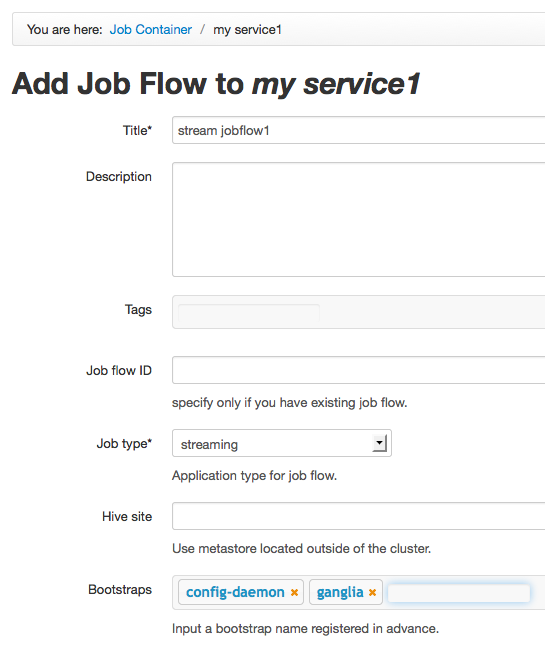
Create Job Flow
Job Step
This is last task. Add several steps to a job flow.

Add Job Step
This step is a Word Count Example.

Create Job Step
Select Job Step link to add another job step. Or, back to upper job flow after you created a job step.
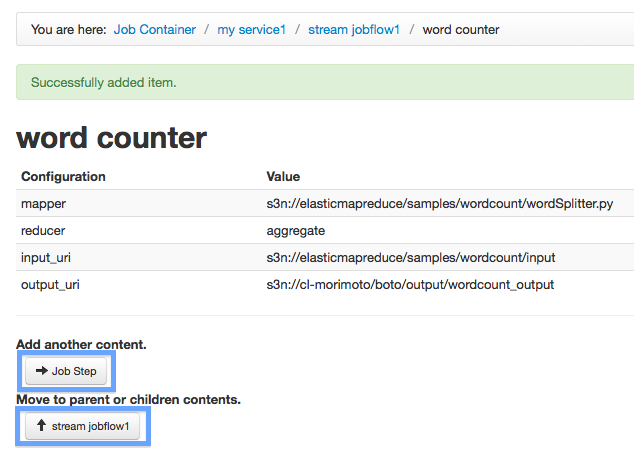
Created Job Step
You can confirm information about job flow by clicking Resource Info, Bootstrap Info and Unexecuted Step Info button.
Now, Run Jobflow button is appeared. It means all settings are completed.

Run Job Flow
Click Run Jobflow button, then you’ll see the job flow’s information. To show latest information, click Refresh button.
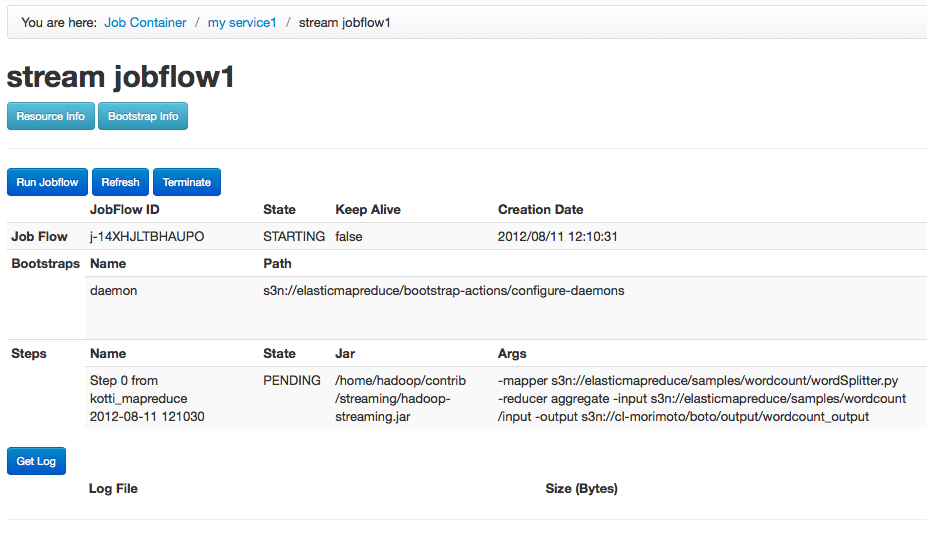
View Job Flow Status
Get Log
Your job flow is finished, then you can get the logs. The log is located on Log URI of ref:resource. To get download each log file, click an icon next to its log file name.
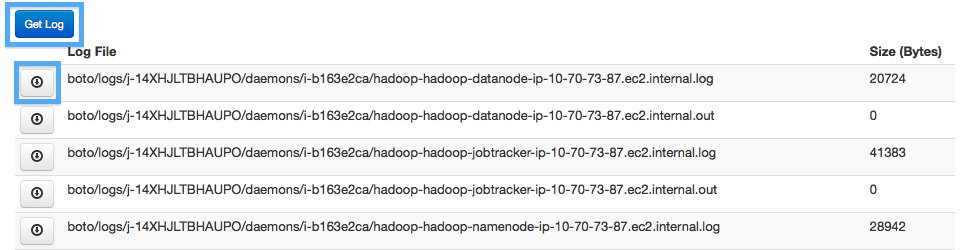
Get Log from S3